Walkthrough
The following is a guide for setting up a simple game in VNKit. It’s aimed to help those who are beginners in both VNKit and Unity get familiar with the system and workflow.
Step 0 - Getting VNKit Set Up
While it’s outside of this walkthrough’s intent, obviously you will need to have the VNKit package installed in your Unity project before you can use it. See Setting up VNKit.
Step 1 - It starts from a single Node
When you finish setting up VNKit and enter the Story Editor, you’ll be faced with the Board Viewer screen. One Node is already placed for you.
Begin by typing out the first textbox of your story. When you’ve done that, right click, click ‘Add node’. Then type the second textbox of your story. Then drag from the circle connector on the right of the first Node to link it to the second Node.
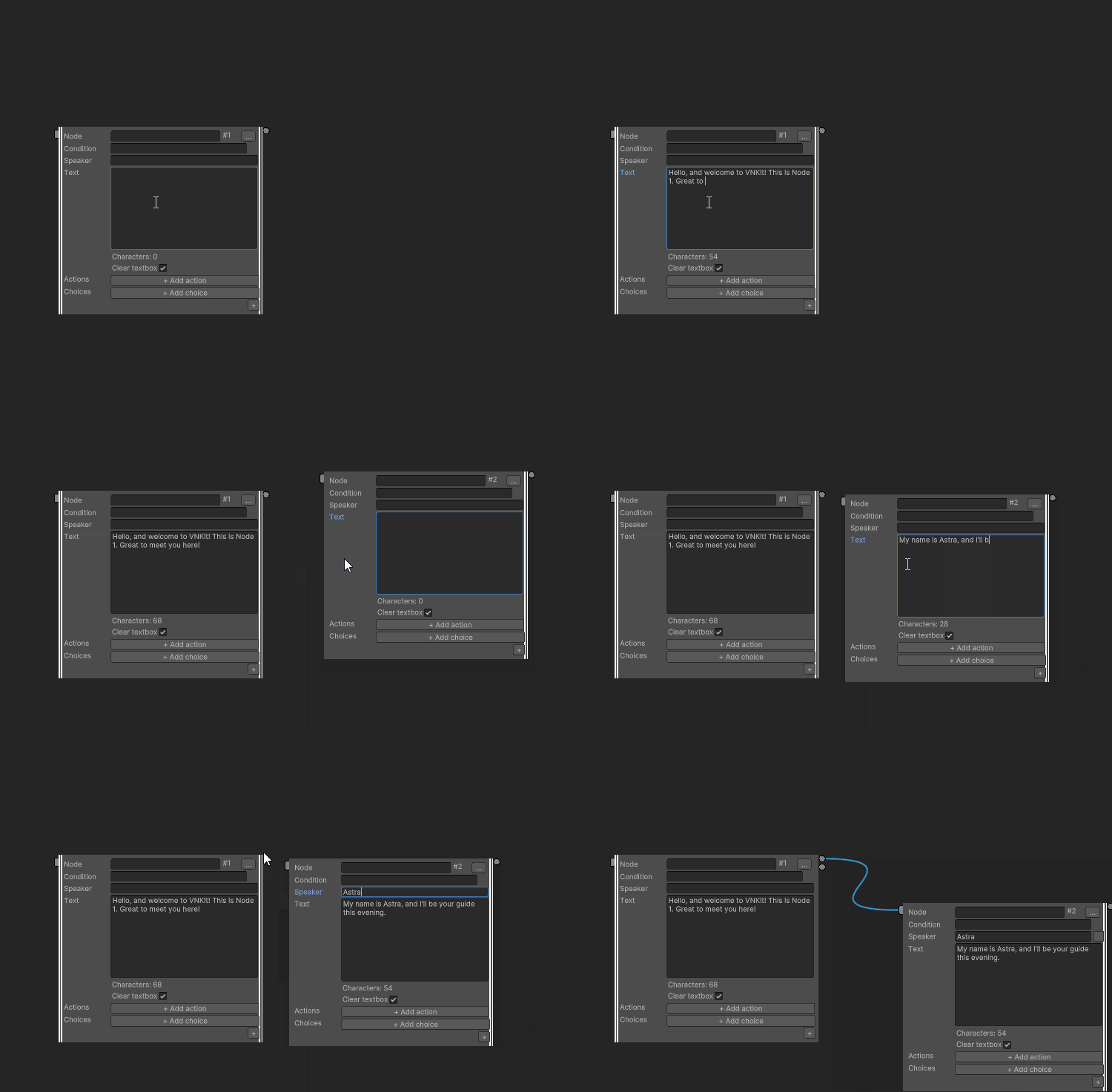
Don’t forget:
At any time you can preview your project. You can push Play in the main Unity window, or set up a Game preview tab in the Story Editor window.
Step 2 - Your first choice
On the second node, press the + Add choice button a few times until you have the number of Choices you want.
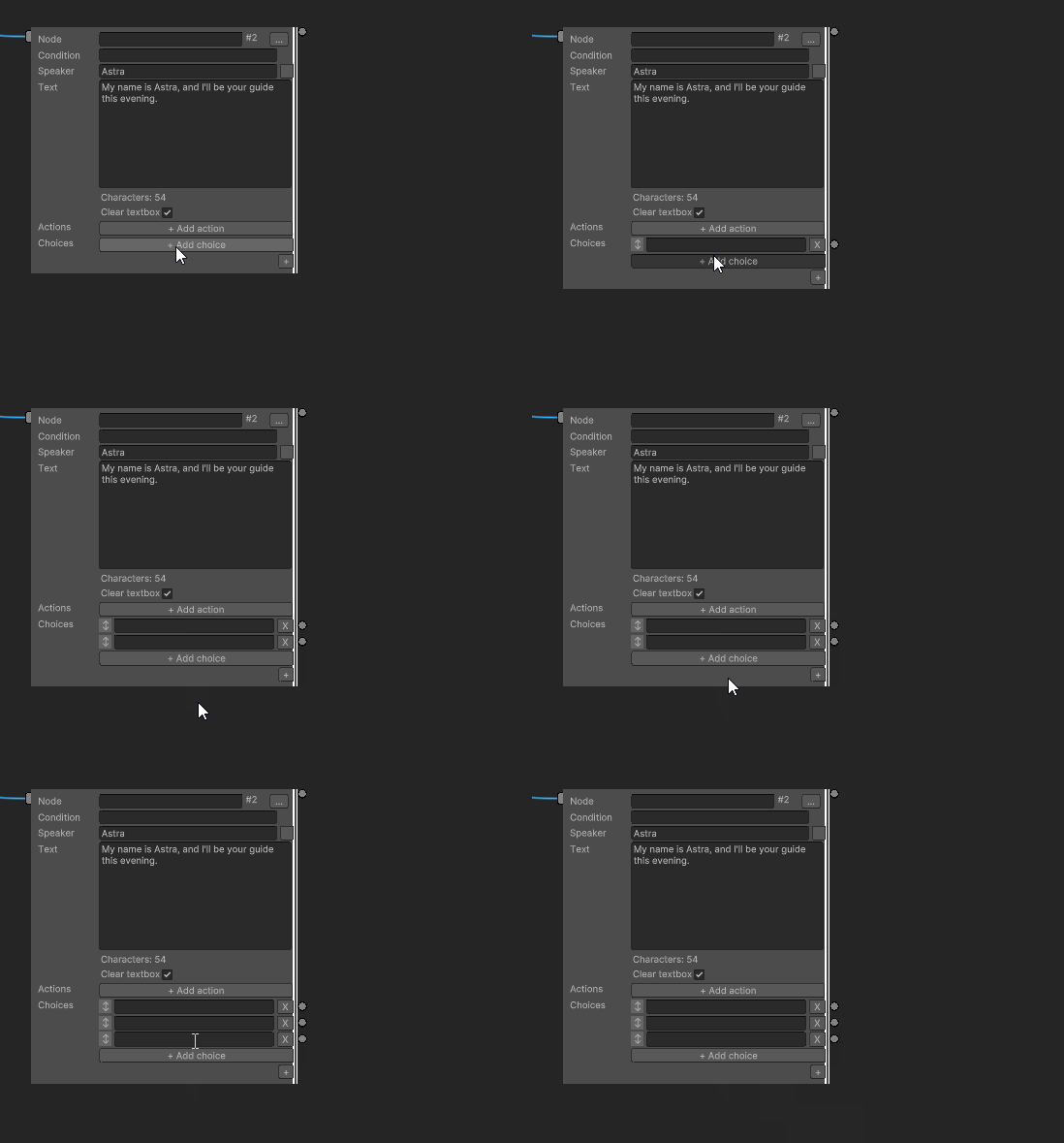
You’ll need somewhere for all those Choices to lead, so make a new Node for each of the Choices to lead to, and link it up. (Remember - you don’t have to insert the new cable into the Node’s connector. You can link by dragging the connector anywhere on the body of a node.) Cables coming out of Choices are always yellow.
Now you have a branch!
Step 3 - Node conditions
We’re going to set up a “hub and spoke” structure here - a common shape that allows the player to read through as many options as they choose in any order before continuing. We also want to have the game remember which of these choices the player has seen, so once they have read at least one thing, they can progress to the next part of the story.
Label the answer node for “I have some questions” with something that makes it clear what it is (like “Question hub”). Then fill out the questions the player can ask.
Set up nodes for every answer, and then connect each answer back to the Hub.

You’ll now set up a Condition for that last answer, so it will only appear when the player has done something.
Give a Condition to the Node that will represent the next part of the story. Immediately, you’ll see coloured chips representing variable use appear above your Node. In the previous Node, you’ll see the Condition written out. (Remember - this is just as a reference. If you want to change the Condition, you’ll have to do it in the “Condition” section of the target node.)
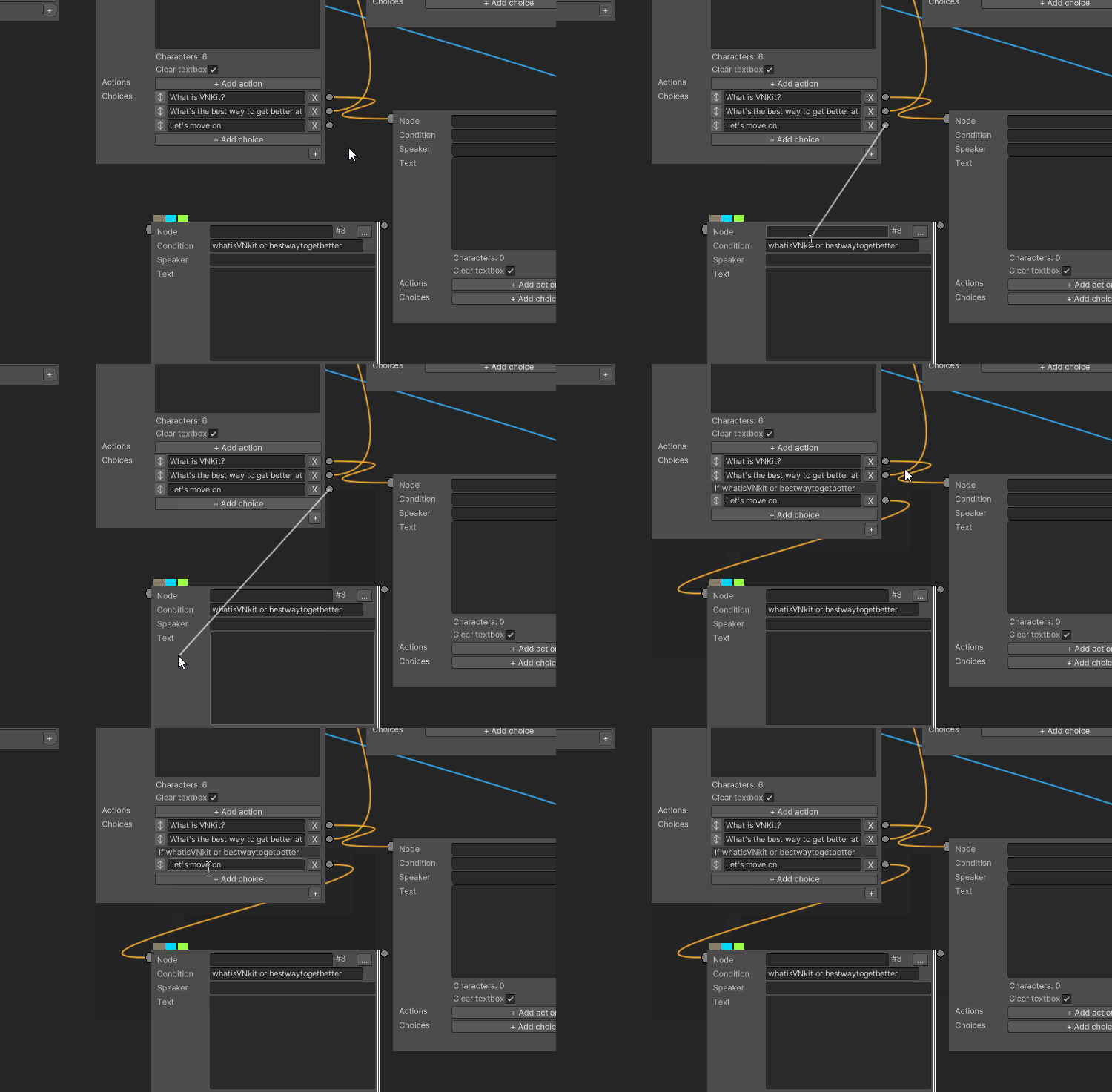
Tip -
Unlike some other visual novel engines you might be used to, you don’t have to specify “
=true” - just give the name of the variable. If you’re checking that something isn’t true, you can say “not (Variable)”. Doing it this way also counts Null values for variables that you haven’t set yet - really useful for checking story flags, since you’ll only be creating them when you need to use them.
If you don’t like the colours of the chips, you can change them in the sidebar:
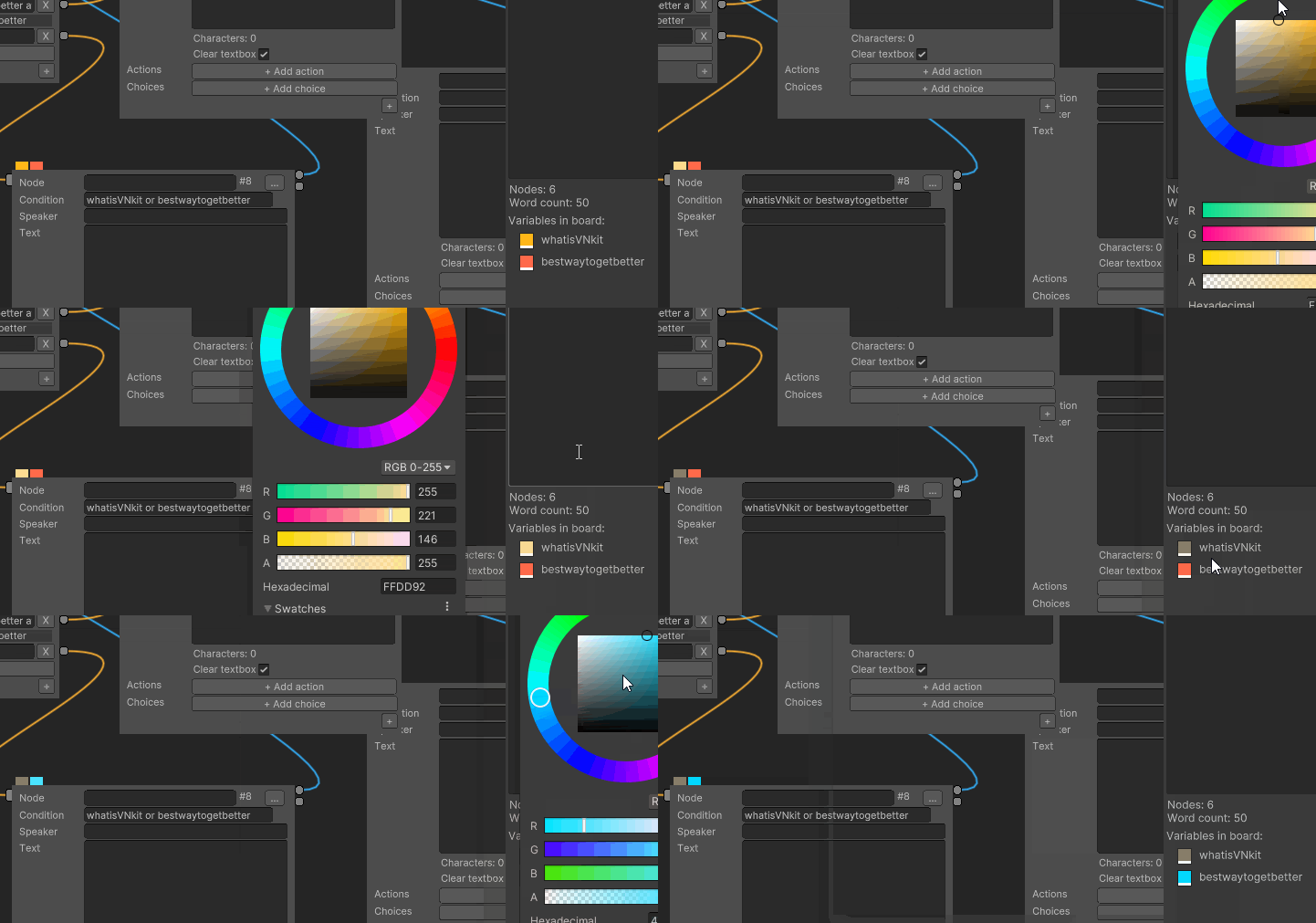
Step 4 - Setting flags
The choice that allows the player to carry on with the game will now only be visible to the player if they have one of those two variables we specified. Now all we need to do is set those variables.
On the Node leading from the choice, click “Add Action”. Click the action “Set Variable”. Type in the name of the variable (you can see it in the sidebar), set it to true, and then click OK. Now, when the player visits that node, they’ll set a flag that unlocks the second choice in the Hub.
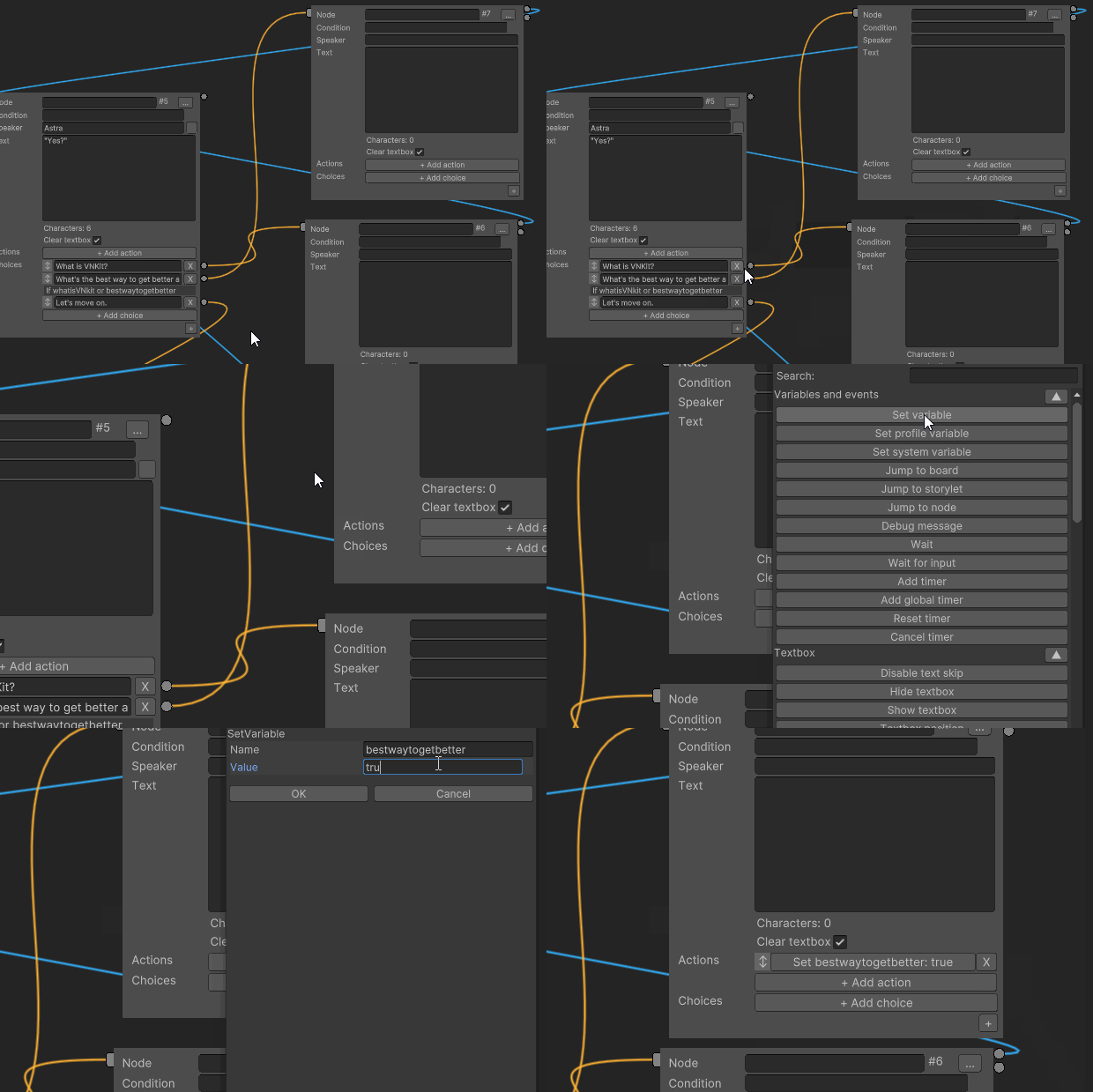
You can do this for the other choice too.
You have now learned the basics of building branching path narrative games! But there’s a lot more you can do with variables and conditions in VNKit…